
techley

938

65

6

Get your canvas/work area ready with a white or transparent background, RGB mode, 8/16 bits per channel works well.

Pick your base color

And use the paint bucket to fill your whole layer

Get the brush tool and change your parameters so the hardness is set to 0, and the brush size will depend on your area size. For this I used a document size of 1800x1800 pixels so around 500 pixels worked well.

Pick a second color to use on the background, different shades of the same color work, as well as nearby colors on the color wheel. So for red, you could use orange or purple, but not green.

And brush it on in random areas

Then, blur it together using Gaussian blur. I like Gaussian because it's uniform. Tilt shift could work as well, it will blur radially around the center with increasing effect as it goes further from the center.
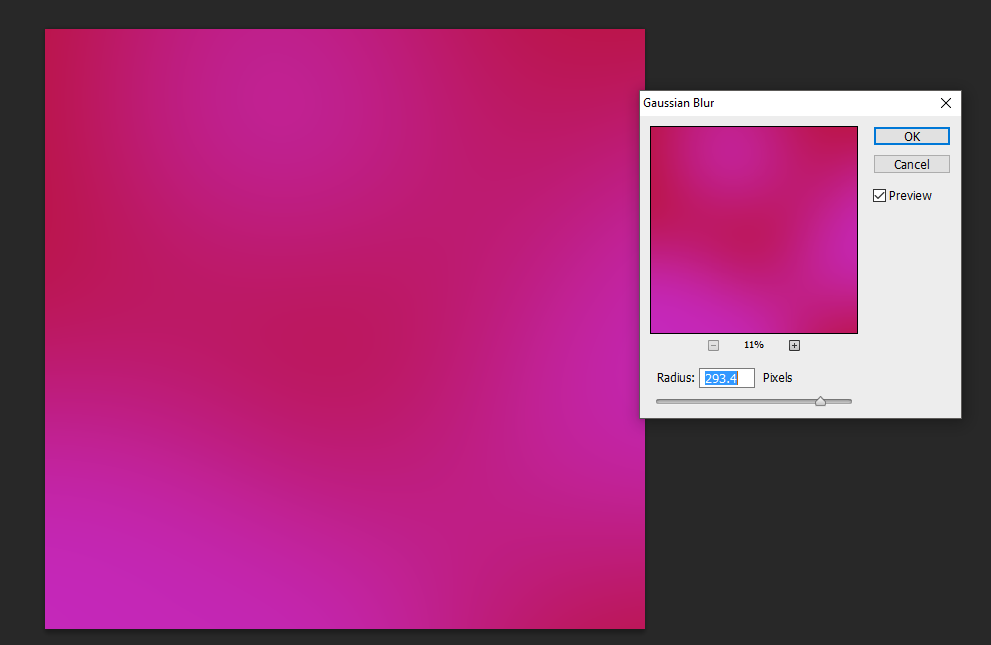
Play with the blur radius until the effect is subtle enough for you

Right click your layer, select "Blending Options", then click on Pattern Overlay. Select a pattern from the dropdown, this can be changed to get different effects.

Set the blend mode to Overlay and it will let the color show through, darkening all the black and gray areas of the pattern.

Set the opacity to a low percentage for a subtle effect or leave it at 100 for a bolder effect, and play around with the scale until it looks good. A higher scale will make it look like it's less tiled and more natural. And that's it!

You can choose different patterns to get different effects but typically the grayscale ones work best for this.

Cat pattern tax
Sockdotgif
Also use Adobe kuler to get the analogous color scheme?
mrsparklenoggin
this is wonderful - thank you @op!
polgarij
Very helpful! Thank you!
IDrawPokemon
Op delivers! ????
techley
ya
Sockdotgif
Also; how to make that papery pattern?
Sockdotgif
Jk figured it out. Thanks @OP